

Have you ever published a blog post and waited days—or even weeks—without seeing it appear in Google Search results?
Many website owners immediately assume the issue is related to content quality or keyword targeting. In reality, the first thing you should verify is whether Google has discovered, crawled, and indexed the page.
The best tool for checking this is Google Search Console.
Google Search Console is Google’s official SEO platform that helps website owners understand how Google views their websites. It provides valuable insights into search visibility, indexing status, crawling issues, sitemap submissions, and overall search performance.
If you’re new to SEO, you’ve probably asked yourself:
“Why isn’t my page showing up on Google?”
In many cases, the answer can be found inside Search Console.
This guide covers everything you need to know, including setup, sitemap submission, URL inspection, indexing requests, and troubleshooting pages that fail to appear in Google Search.
Quick Summary
| Feature | Purpose |
|---|---|
| Site Verification | Verify ownership of your website |
| Sitemap Submission | Provide Google with a list of URLs |
| URL Inspection | Check the status of a specific page |
| Request Indexing | Ask Google to review a page |
| Indexing Report | Identify indexing issues |
| Search Performance | Analyze search traffic and rankings |
If you’re serious about SEO, Google Search Console should be one of the first tools you connect to your website.
What Is Google Search Console?
Google Search Console is a free SEO tool provided by Google.
Think of it as the official communication channel between Google and your website.
Using Search Console, you can monitor:
- Search impressions
- Clicks
- Average ranking position
- Indexing status
- Crawling errors
- Sitemap submissions
Most importantly, it helps you understand which pages Google has discovered, crawled, indexed, or excluded from search results.
For SEO professionals, it is considered an essential tool.
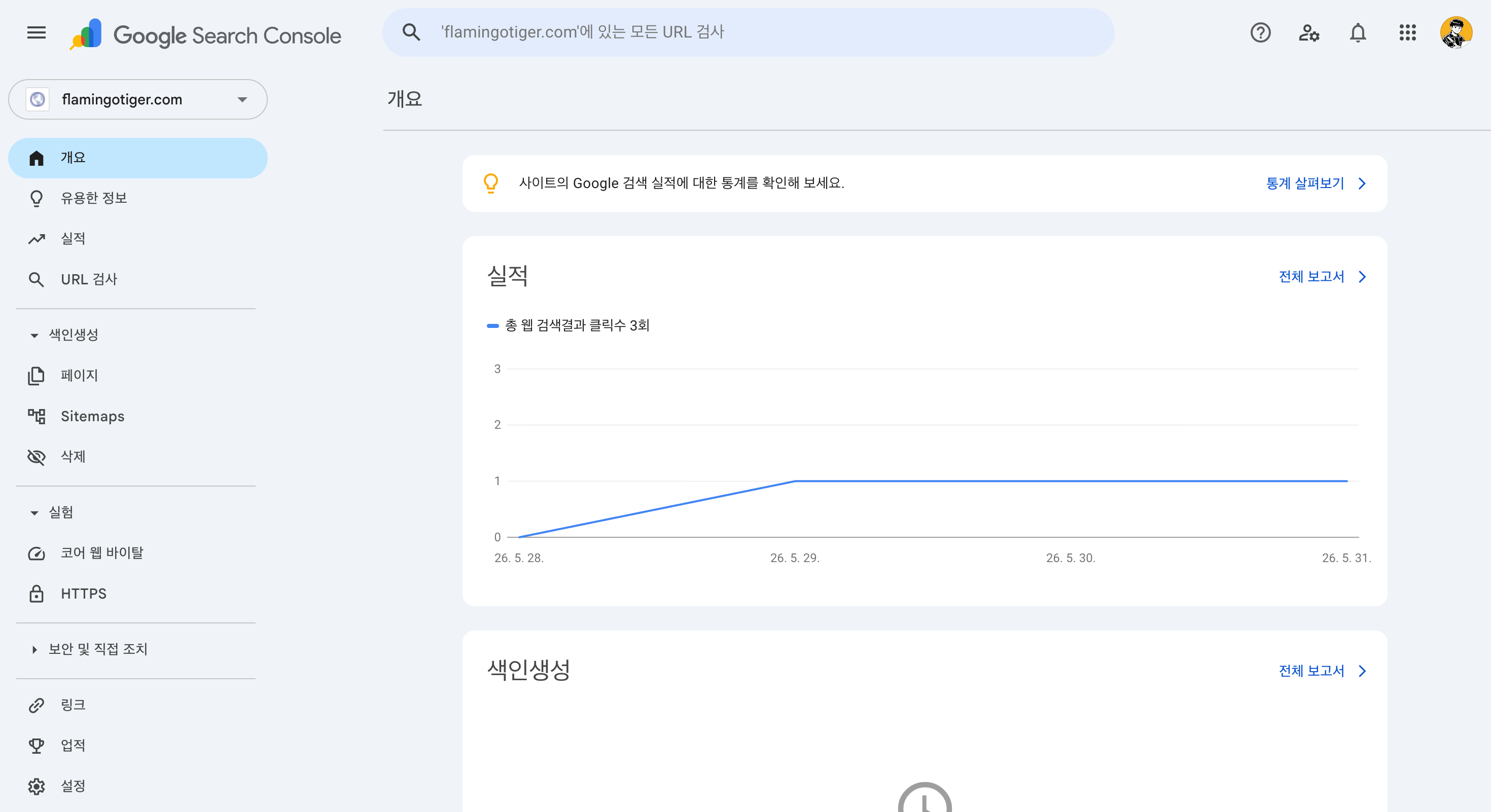
Example of the Google Search Console dashboard showing search performance, indexing status, and sitemap information.
How to Set Up Google Search Console
Why Verification Matters
Google only provides detailed website data to verified site owners.
Before starting any SEO work, the first step is verifying ownership of your website.
Setup Process
- Open Google Search Console
- Click Add Property
- Choose Domain or URL Prefix
- Complete ownership verification
- Finish setup
Whenever possible, choose the Domain Property method.
| Method | Coverage |
|---|---|
| Domain Property | Includes all subdomains |
| URL Prefix Property | Covers only a specific URL path |
For example, verifying example.com allows you to manage:
- www.example.com
- blog.example.com
- docs.example.com
As your website grows, Domain Property verification becomes much more convenient.
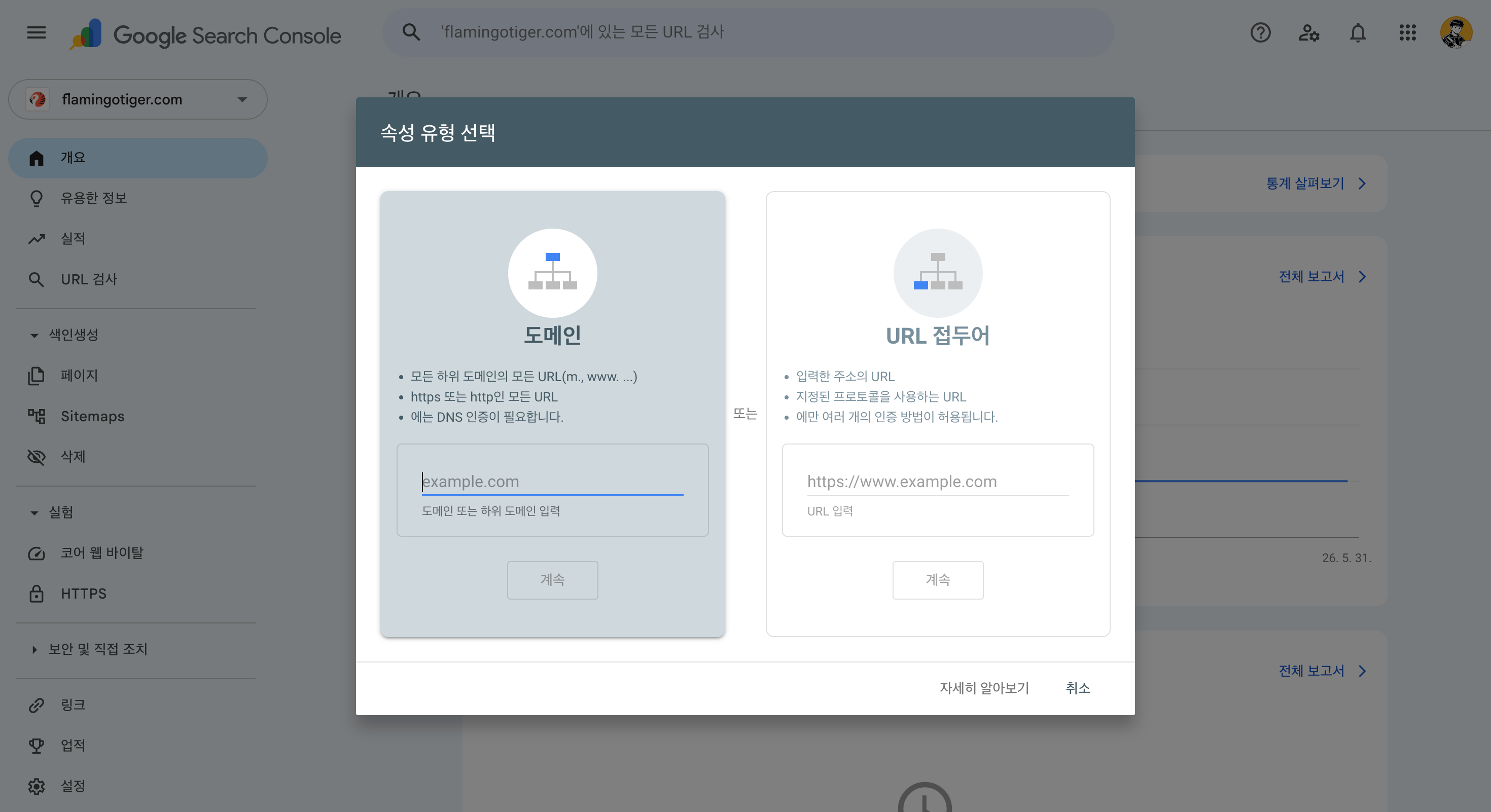
Choosing between Domain Property and URL Prefix Property.
Submit Your Sitemap
What Is a Sitemap?
A sitemap is a file that tells search engines which URLs exist on your website.
It helps Google discover pages more efficiently, especially on:
- New websites
- Large websites
- Websites with deep navigation structures
Most websites host their sitemap at:
https://example.com/sitemap.xml
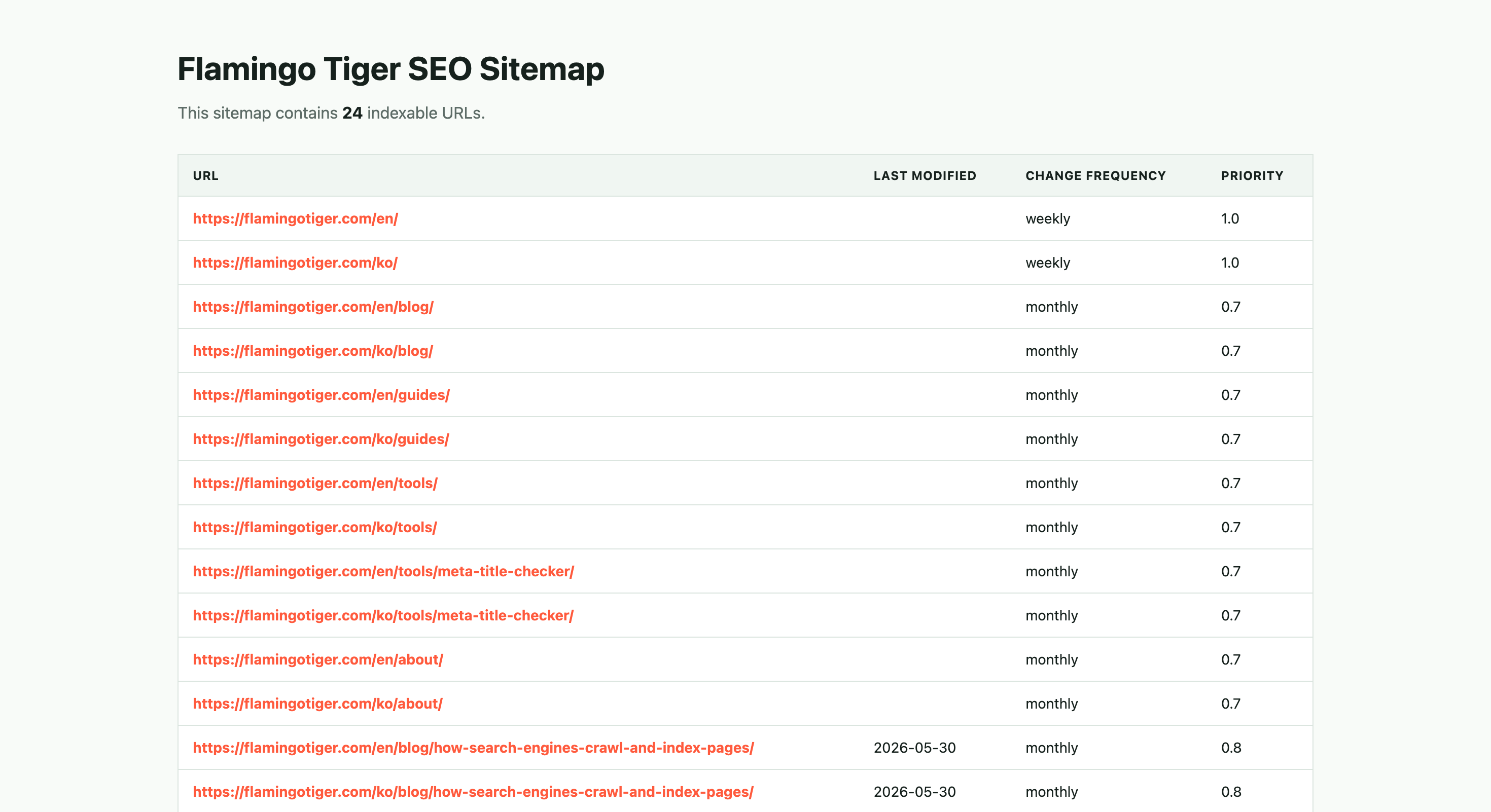
Example structure of an XML sitemap.
How to Submit a Sitemap
In Search Console:
Indexing → Sitemaps
Enter your sitemap URL and click Submit.
Example:
https://example.com/sitemap.xml
If successful, the sitemap status will display as Success.
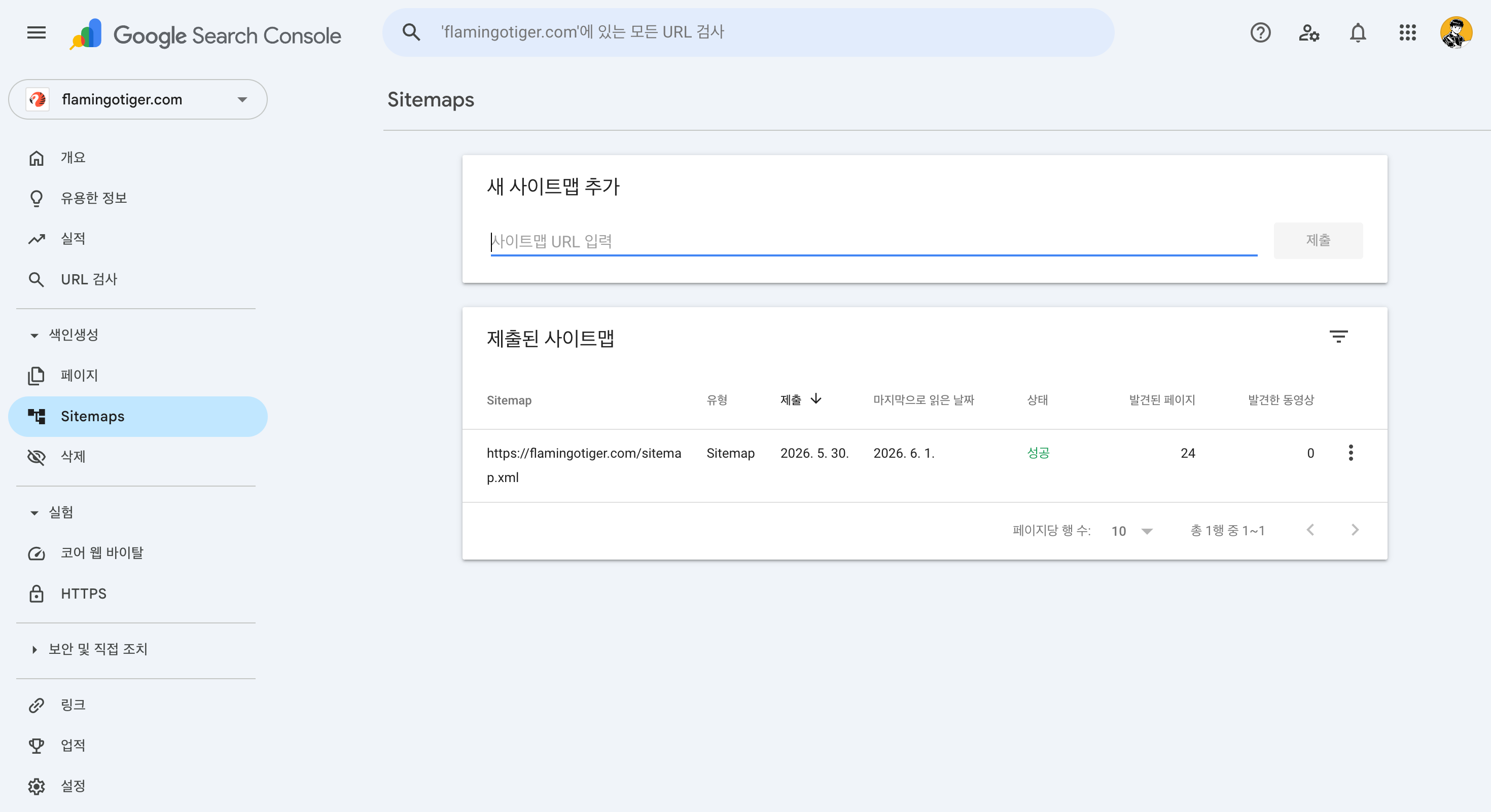
Submitting a sitemap URL in Google Search Console.
Why Sitemap Submission Matters
Google can discover pages through internal links.
However, new websites often lack a strong internal linking structure.
Submitting a sitemap helps Google discover important pages faster and is considered a best practice for technical SEO.
Using the URL Inspection Tool
What Is URL Inspection?
The URL Inspection tool shows how Google sees a specific page.
You can review:
- Indexing status
- Crawl accessibility
- Last crawl date
- Mobile usability
- Structured data status
It is one of the most valuable tools for diagnosing SEO issues.
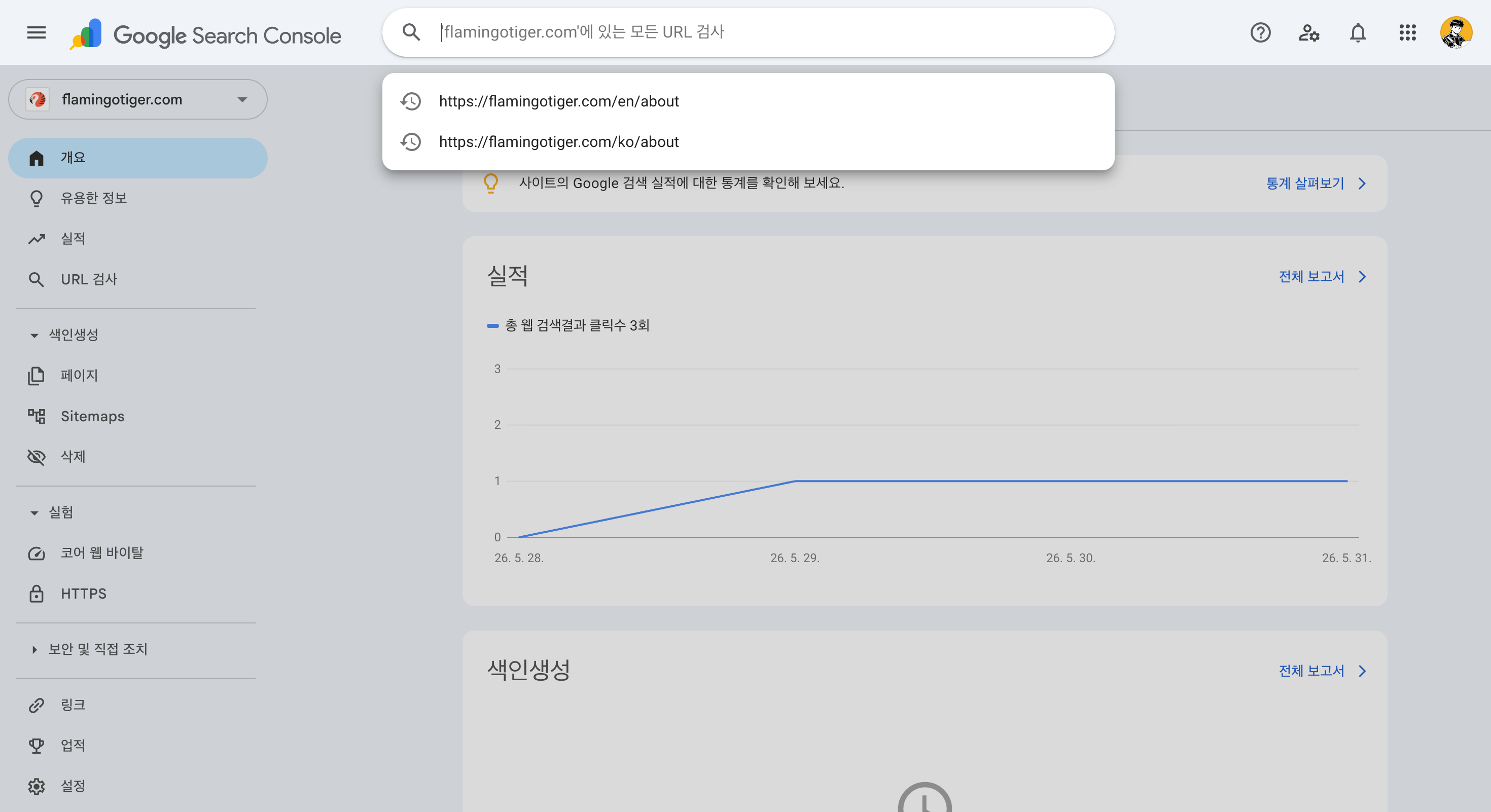
Checking whether a URL is indexed by Google.
When Should You Use It?
Common use cases include:
- Publishing a new article
- Troubleshooting missing pages
- After major content updates
- Technical SEO audits
Whenever a page is not appearing in search results, URL Inspection should be your first stop.
Request Indexing
What Is an Indexing Request?
Publishing a page does not guarantee that Google will visit it immediately.
Google follows a process:
- Discover
- Crawl
- Evaluate
- Index
Using the URL Inspection tool, you can click Request Indexing to ask Google to review the page again.
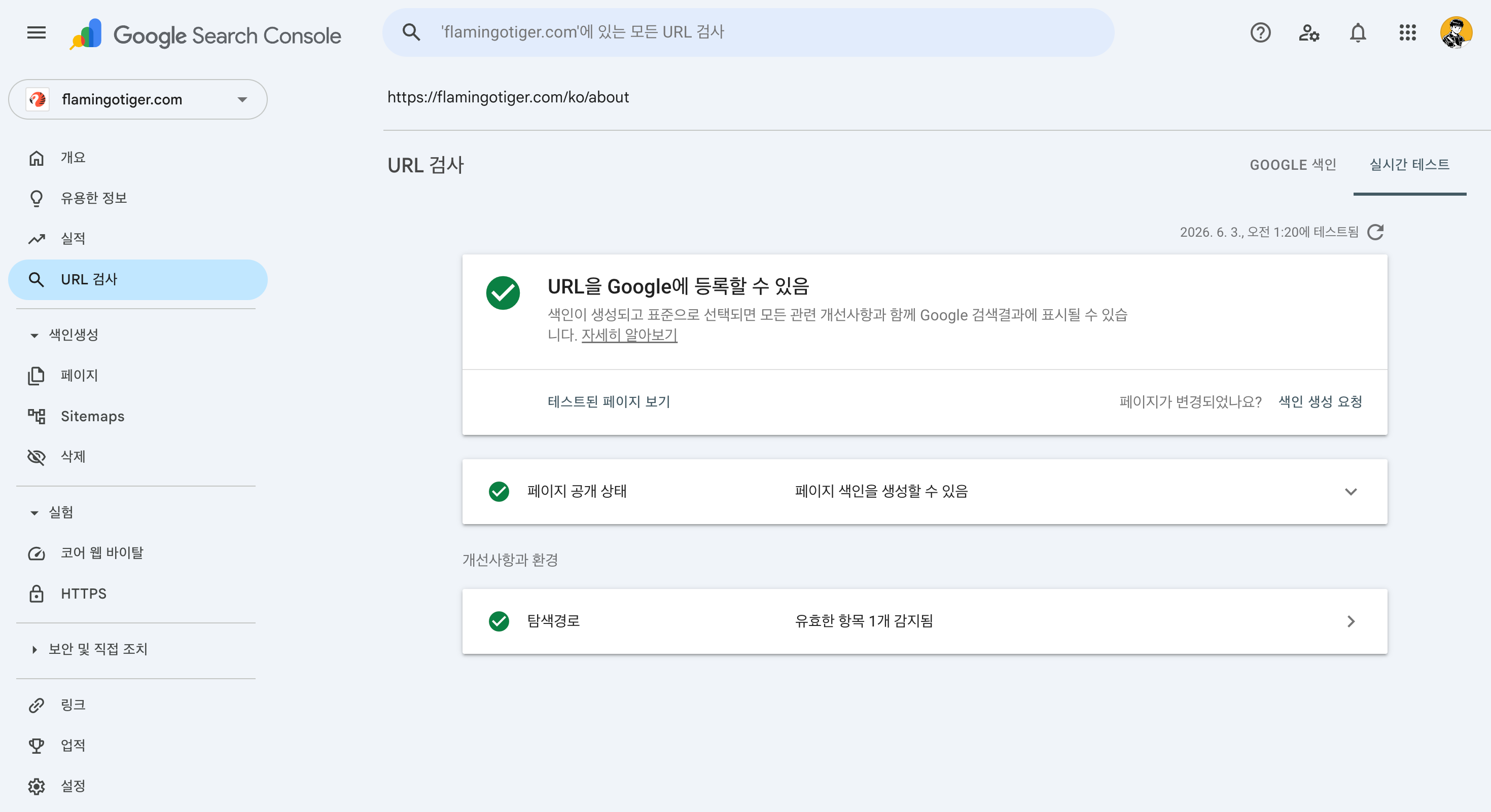
Requesting Google to review and index a page.
When Should You Request Indexing?
Useful scenarios include:
- Publishing new content
- Making significant updates
- Fixing technical SEO issues
- Restoring previously removed pages
Keep in mind that indexing requests are not guarantees.
Google still evaluates content quality, site trust, and overall usefulness before deciding to index a page.
How to Fix Pages That Are Not Indexed
Indexing issues are among the most common problems website owners encounter.
Two statuses appear frequently in Search Console.
Discovered – Currently Not Indexed
Google knows the page exists but has not crawled it yet.
Common causes:
- New website
- Weak internal linking
- Low crawl priority
Improving internal links and submitting a sitemap often helps.
Crawled – Currently Not Indexed
Google crawled the page but chose not to include it in the index.
Common causes:
- Thin content
- Duplicate content
- Too many similar pages
- Low-value pages
If this status persists, improving content quality should be your priority.
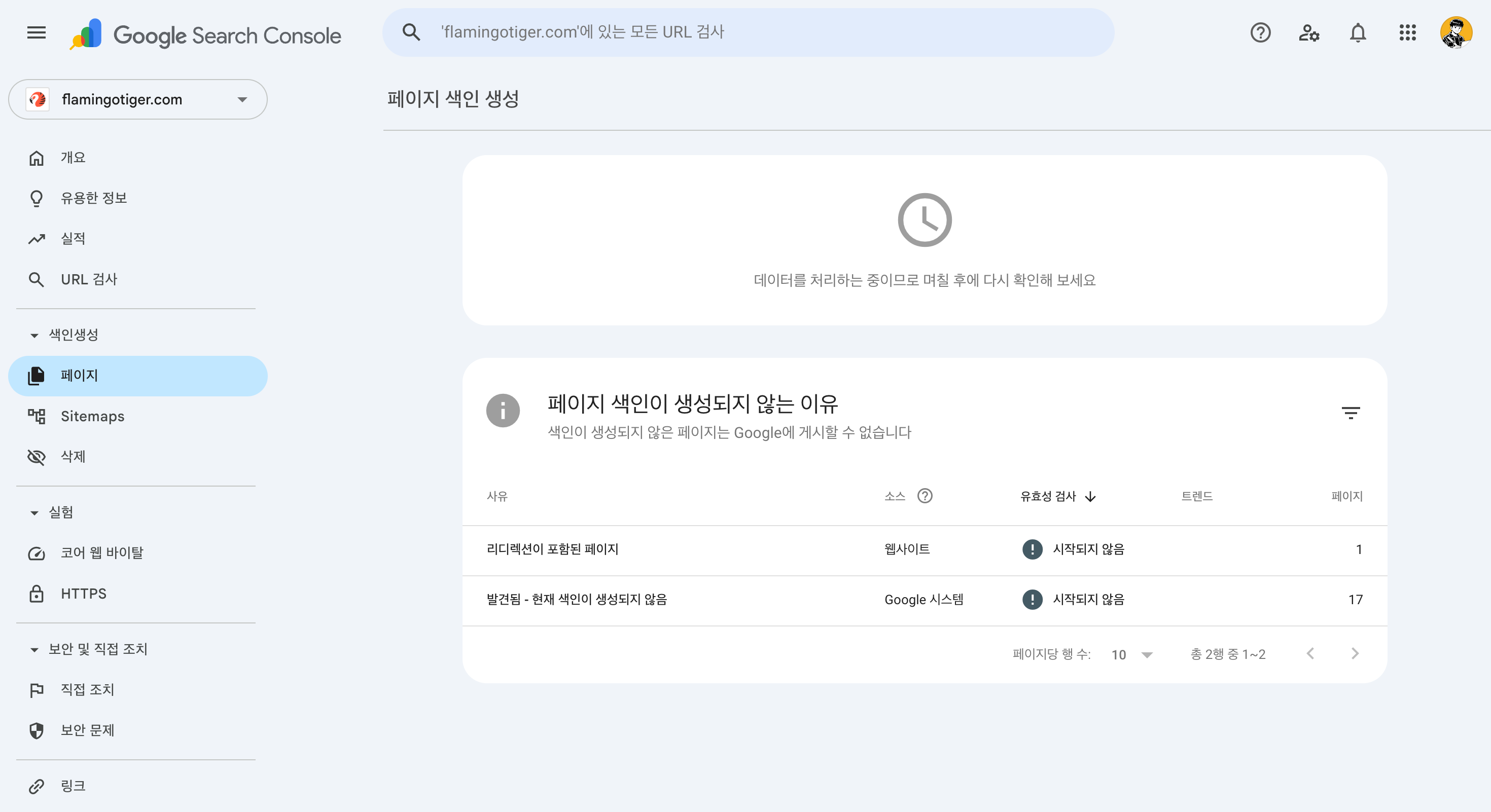
Review indexing statuses such as indexed, discovered, crawled, and excluded pages.
Check for Noindex Tags
Pages containing the following tag cannot be indexed:
html
This often happens when development or staging settings are accidentally left enabled.
Check robots.txt
Your robots.txt file may block Google from crawling important pages.
Example:
txt User-agent: * Disallow: / Allow: /
This configuration effectively blocks crawling across the site and should be reviewed immediately if indexing issues occur.
Reports SEO Professionals Use Most
Search Console contains many reports, but only a few are used regularly in day-to-day SEO work.
Search Results Report
This is typically the most frequently used report.
Metrics include:
- Clicks
- Impressions
- CTR
- Average Position
It also reveals the search queries driving traffic to your website, making it invaluable for content strategy.
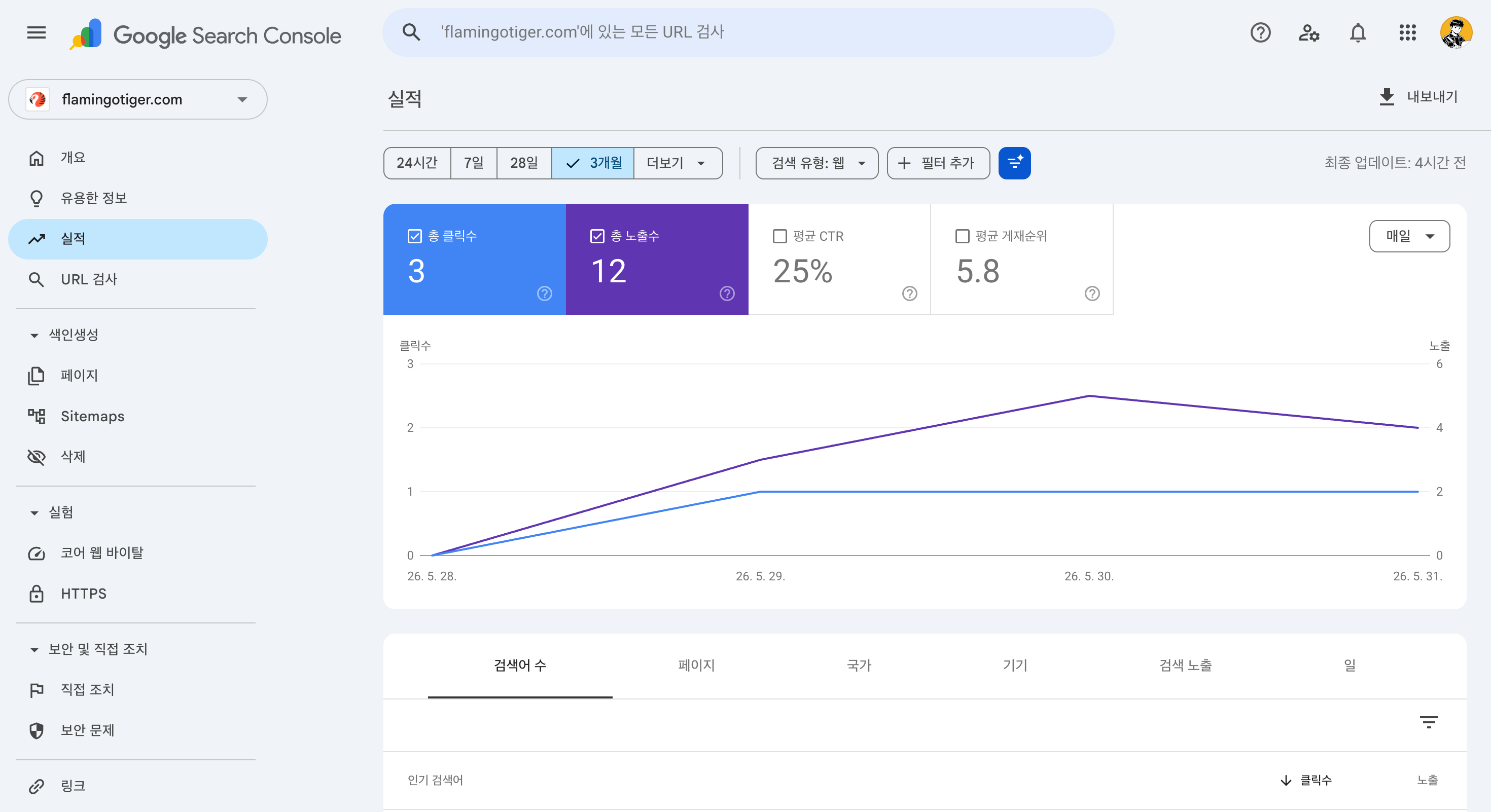
Search performance report showing clicks, impressions, CTR, and average rankings.
Pages Report
The Pages Report provides indexing information.
Common statuses include:
- Indexed
- Discovered – Currently Not Indexed
- Crawled – Currently Not Indexed
- Excluded
Whenever search traffic drops unexpectedly, this report should be one of the first places you check.
Core Web Vitals
Core Web Vitals measures page experience and performance.
Key metrics include:
- LCP (Largest Contentful Paint)
- INP (Interaction to Next Paint)
- CLS (Cumulative Layout Shift)
Since Google considers these signals when evaluating page experience, monitoring them regularly is recommended.
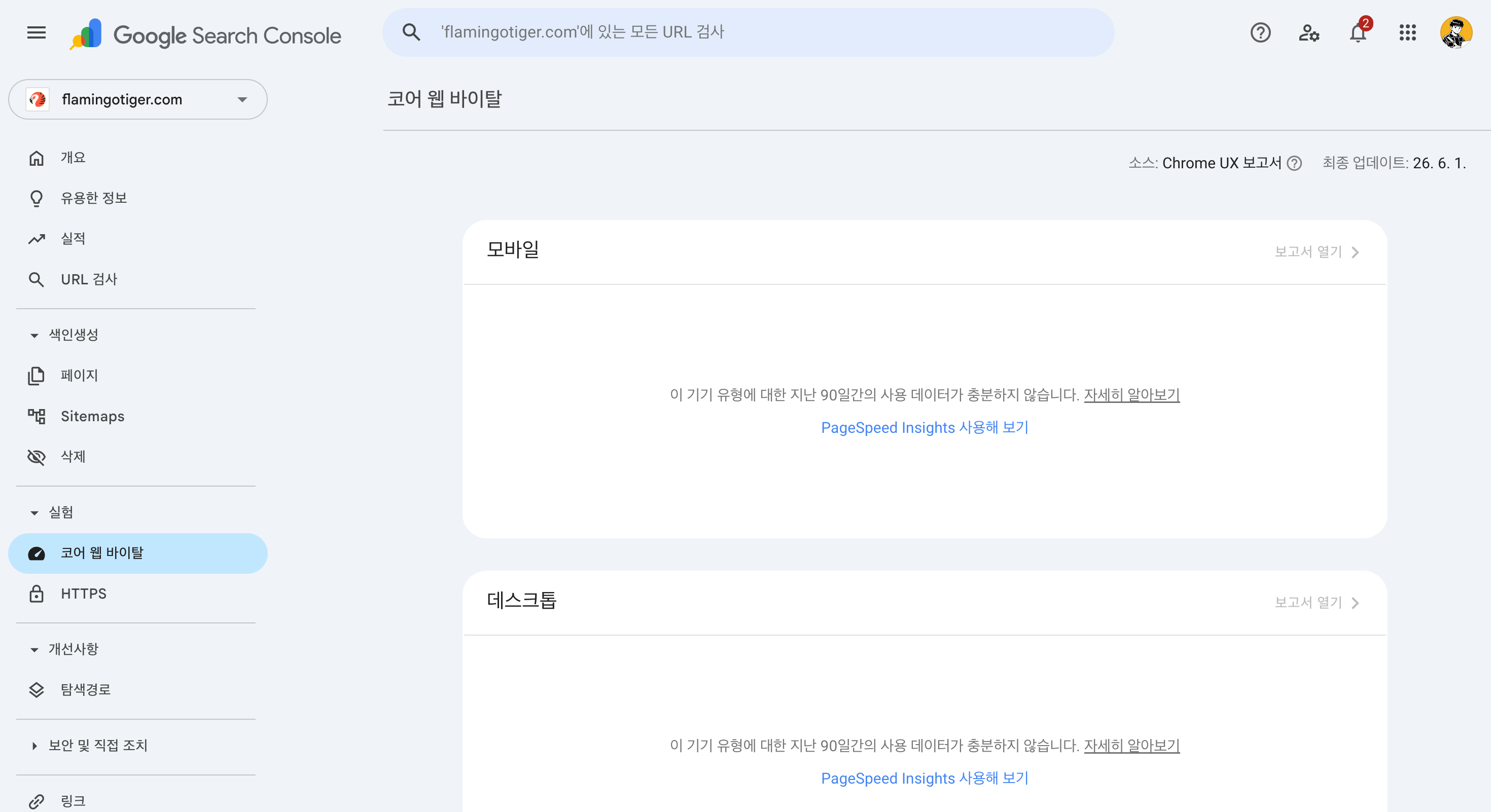
Core Web Vitals report showing user experience and performance metrics.
FAQ
Is Google Search Console free?
Yes. Google Search Console is completely free.
Do I need to submit a sitemap?
No, but it helps Google discover URLs more efficiently, especially on new websites.
Will requesting indexing immediately make my page appear in Google Search?
No. Google still reviews the page before deciding whether to index it.
What does “Discovered – currently not indexed” mean?
Google knows the page exists but has not crawled it yet.
Why does “Crawled – currently not indexed” occur?
Common reasons include thin content, duplicate content, or low-value pages.
Does installing Search Console automatically improve SEO?
No. Search Console helps you monitor and diagnose SEO performance, but optimization efforts must still be performed separately.
Conclusion
If you care about SEO, Google Search Console is not optional—it is foundational.
It provides direct insight into how Google understands your website, which pages are indexed, which pages are excluded, and how users find your content through search.
A simple workflow for beginners:
- Set up Search Console
- Submit your sitemap
- Inspect important URLs
- Request indexing when needed
- Review indexing reports
- Analyze search performance
Developing the habit of checking Search Console after publishing new content can help you identify SEO problems before they become serious traffic issues.
Search Console is more than an analytics platform.
It is the most important diagnostic tool for understanding how Google sees your website.